-
Publish
On the Card tab, under Share with tracks, tap Publish my card. You can also tap it on Home.
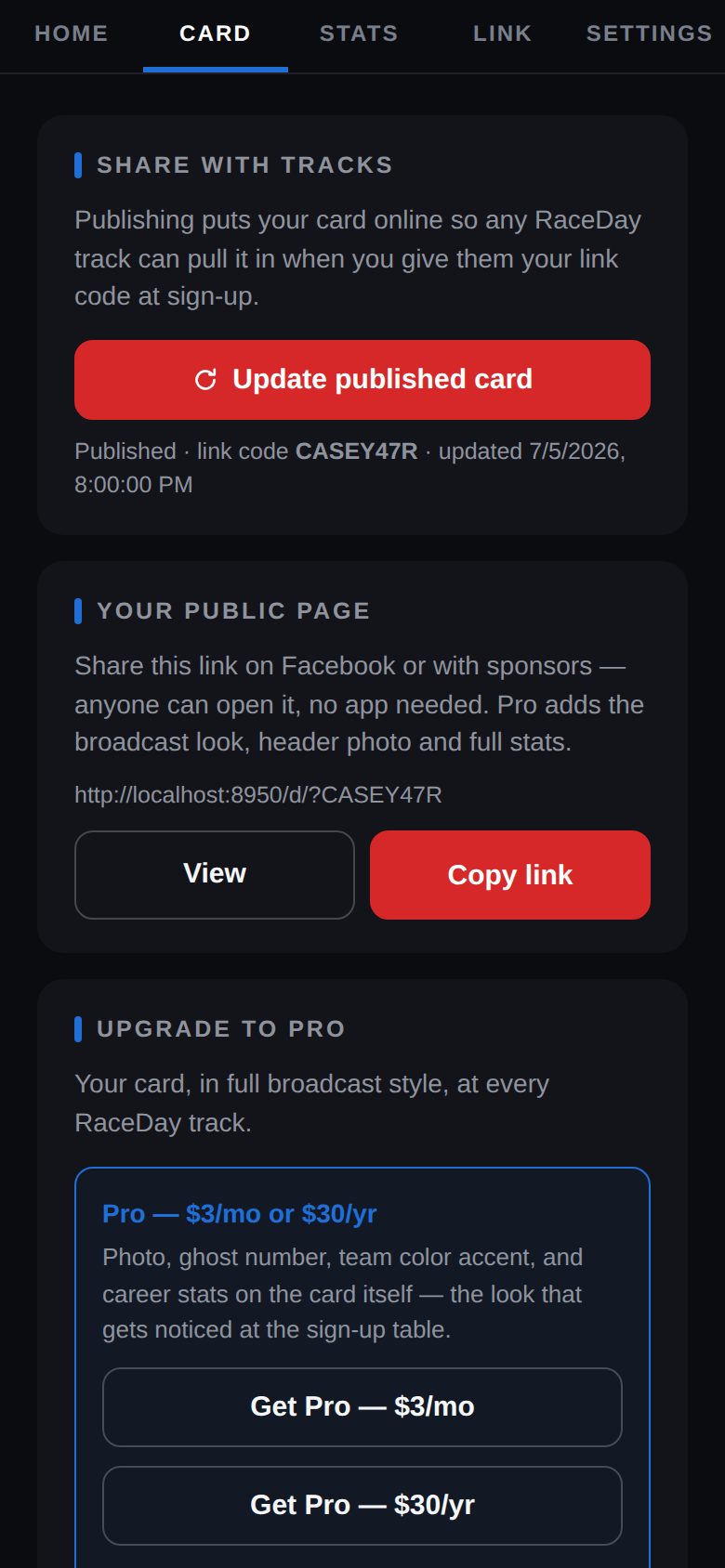
Share with tracks -
Get your link code
Once it's published, the box shows Published · link code with your code — something like CASEY47R. It never changes.
-
Find it on the Link page
The Link tab shows your code big, plus a QR code a race director can scan. Screenshot it so it's handy at the track.
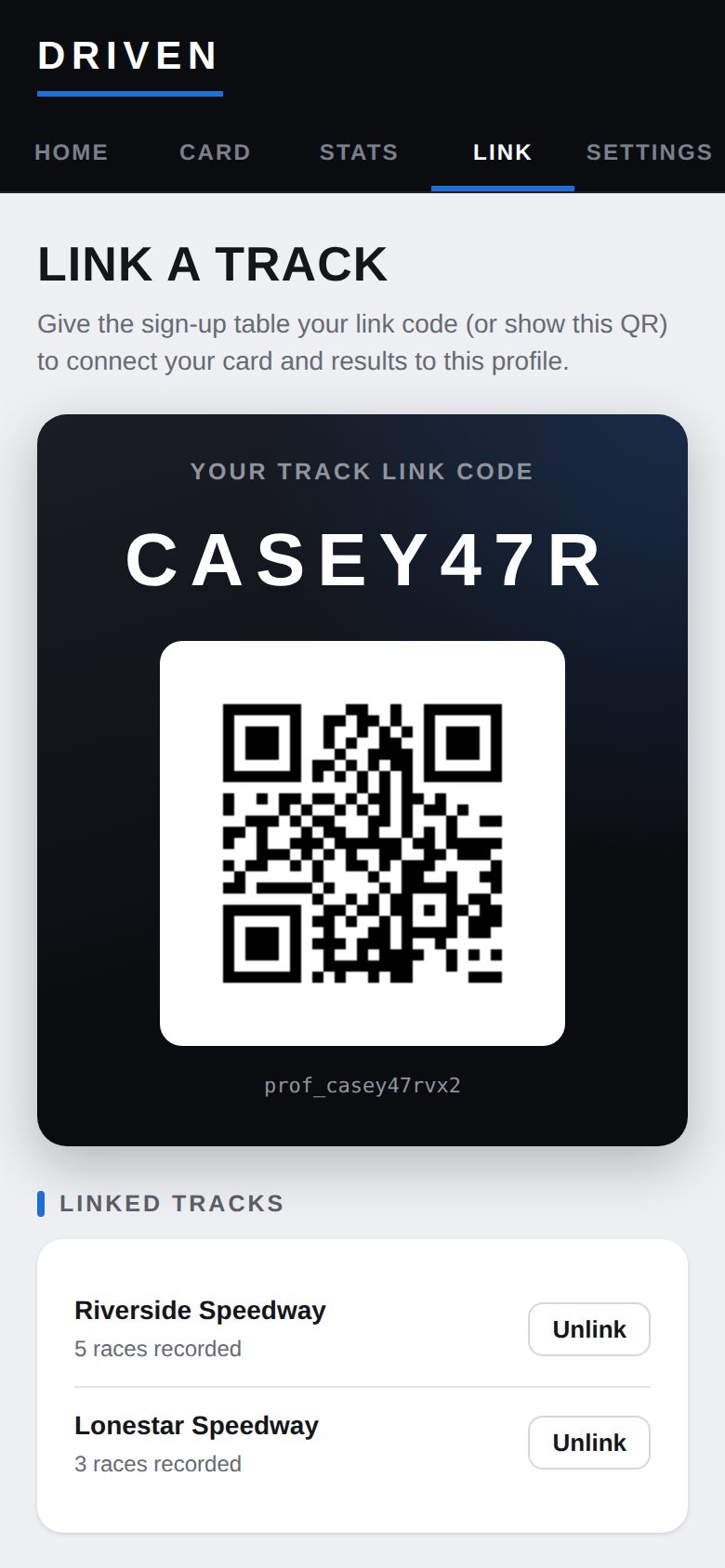
Link a Track -
Changes update by themselves
After publishing, any time you Save changes in Settings your online card updates too. Update published card pushes it right away.
Good to know
- Only what's on your card goes online — your email is never published.
Next guides
Still stuck? The Driver FAQ covers common questions, and the Field Manual walks through every Driven screen. Or just ask.
Email a question →