-
Set up the device
Use the main device's Sign up tab, or a separate tablet opened from the Registration link (see Multiple devices) — that one shows only sign-up.
-
Returning drivers: tap your name
Under “Raced here before? Tap your name — no typing”, a returning driver taps their name. Their number fills in and the classes they ran last time are ticked.
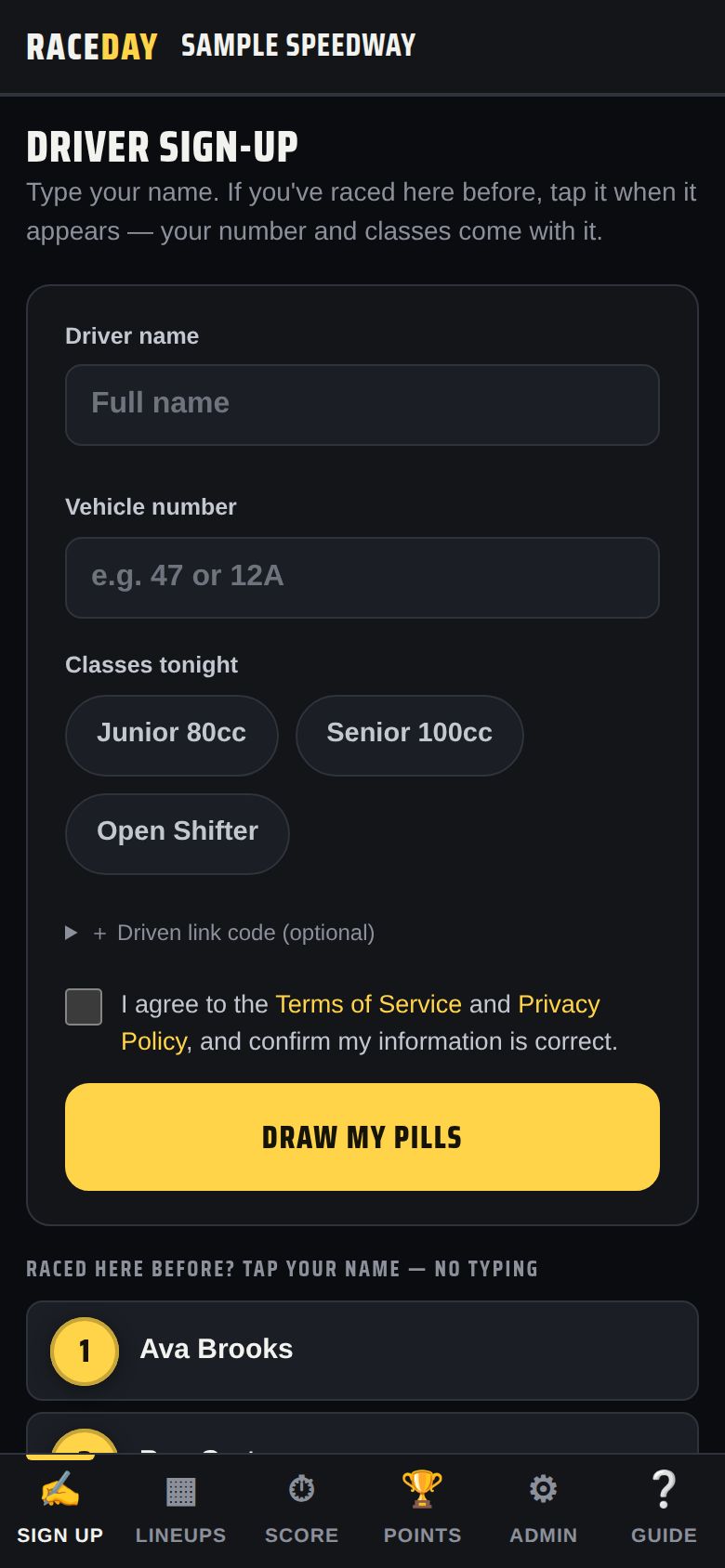
Returning drivers -
New drivers: name, number, classes
Type the Driver name and Vehicle number (1–5 letters or numbers, like 47 or 12A), then tap each class they're racing tonight. Drivers with a Driven profile can add their link code under + Driven link code (optional).
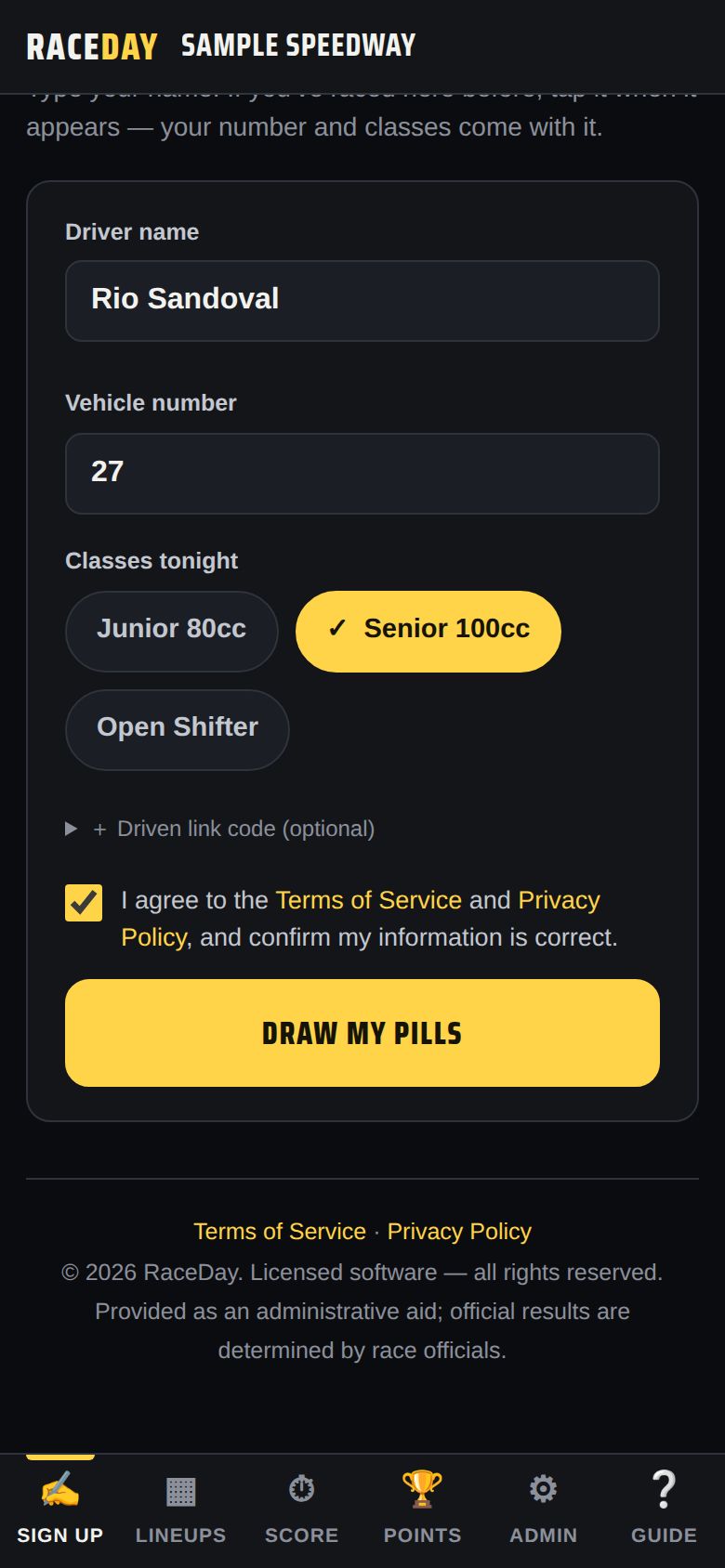
A new driver -
Agree and draw
If your track requires it, the driver ticks the consent box. Then tap Draw my pills.
-
Show them their spot
The screen shows “You're on the grid” with their pill number and starting spot for each class. Spots can shift as more drivers draw. With Multi-device sync on, there's also a 📱 Your lineup on your phone QR code: the driver scans it and follows their own heats, starting spots and results live all night. Then tap Sign up the next driver.
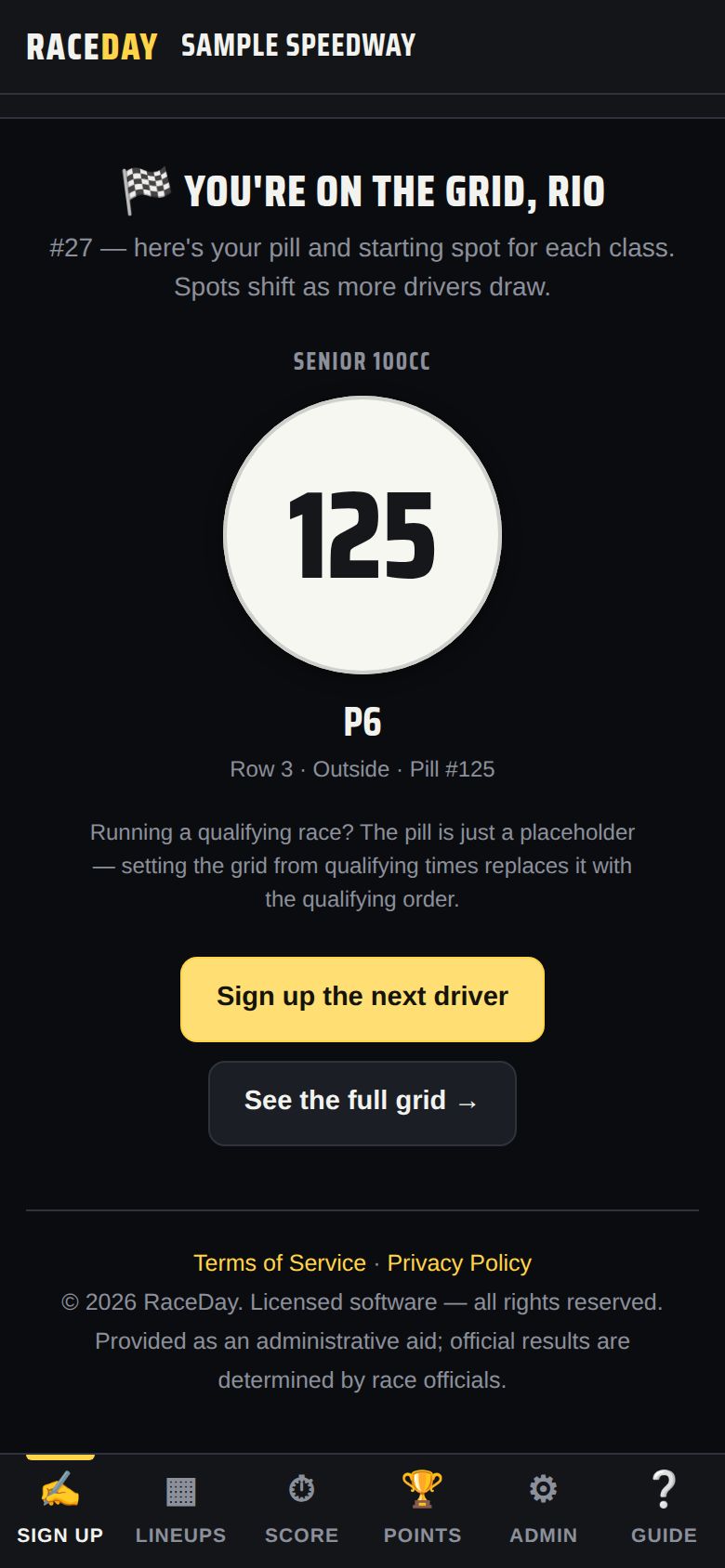
Pill drawn -
When something goes wrong
- Wrong number or class? The race director fixes it in Admin → Today's entries.
- “All pills are taken” — the race director raises that class's Pills 1– number in Race classes.
- Same name and number as a saved driver — RaceDay asks to confirm it's the same person.
Good to know
- For a qualifying class the pill is just a placeholder — qualifying times set the real grid.
- Missed the QR code? Open the driver's card and tap 📱 Lineup link to show it again.
- Want drivers to sign themselves in? Turn on kiosk mode — see Fans & TV.
Next guides
Still stuck? The Field Manual walks through every screen, and the FAQ covers common questions. Or just ask.
Email a question →